
How to Make a Meme on iPhone?

Key Takeaways
- Users can learn how to make a meme on iPhone without an app by editing an image within the Photos app and adding text to it.
- Users can also opt for a third-party app like BeautyPlus to edit and create memes using its built-in collection of stickers and fonts, and share them directly through the app.
- Other popular apps that allow iPhone users to create memes include Mematic and Picsart.
Without memes, conversations are no fun and content is no longer engaging. The current generation loves turning everything into memes. Whether it is to sell e-commerce goods online, educate the masses, or even create humourous content, memes are the top choice.
With the popularity of memes, do you want to know how to make a meme on an iPhone? If yes, let us explore the ways to utilize the built-in photo editor of the iPhone to show your creativity.
Also, let us learn the steps to make memes with BeautyPlus in this article. Lastly, we have discussed 2 other applications of meme-making compatible with the iPhone.
 Download on App Store
 Get It on Google Play
How to Make a Meme on iPhone without App?
Below are the steps to make a meme using your iPhone without any application.
Step 1: Find the Image to be Edited
You must have in mind the picture that you can turn into a meme. After it,
- Go to your gallery
- Click on the desired image
Step 2: Edit Its Colors, Contrast, Saturation
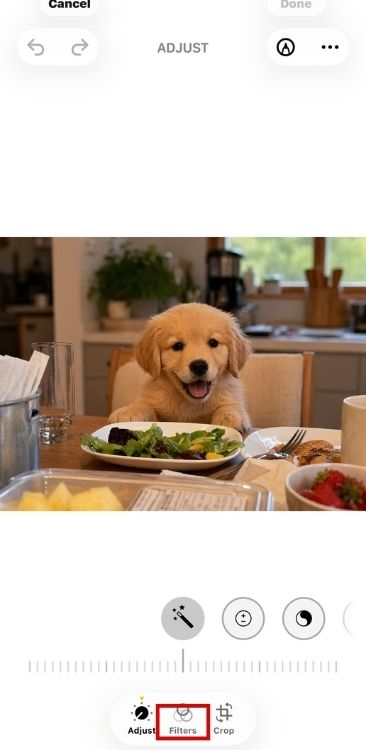
Most of the time, the uploaded image does not have a suitable color, background, or brightness to be turned into an interesting meme. Therefore,
- Hit the editor sign which is the second option from the left side at the bottom of the screen
- Here, edit the colors, contrast, and saturation of the image
Step 3: Edit the Background
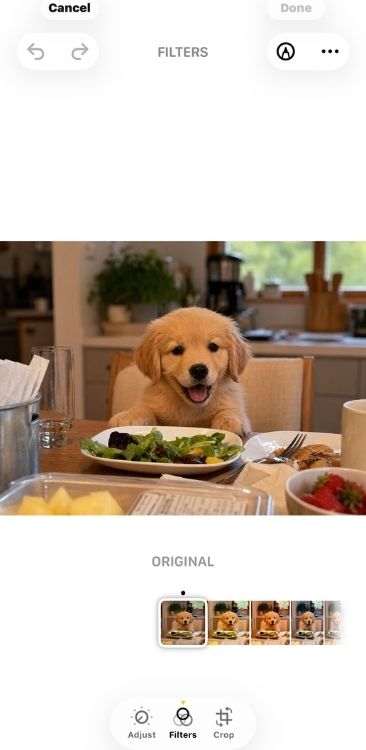
The iPhone does not directly allow you to change the background image. However, you can use the filters to change the background into a subtle one. Therefore,
- Click on the “filter” option in the editor menu (it is the second option in the bottom of the screen)
- Save this image with compatible filters
Step 4: Write and Place Text
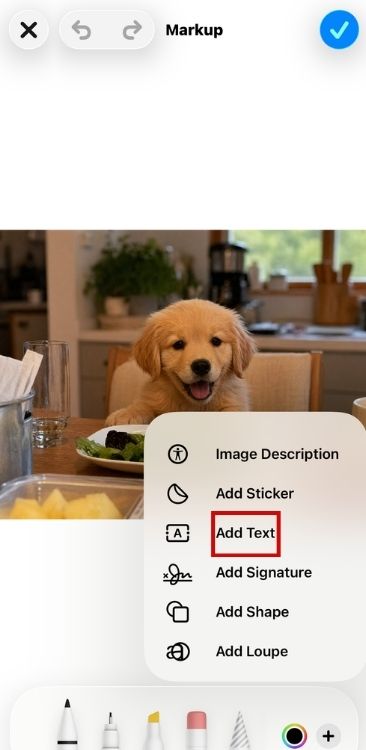
Within the editor menu, the top part of the screen has a markup tool. The icon looks like a pencil and it is located on the right side at the top grid. Here,
- Click on the pencil-shaped icon
- Select the “+” sign provided on the screen’s lower grid
- Check the “Add Text” option here
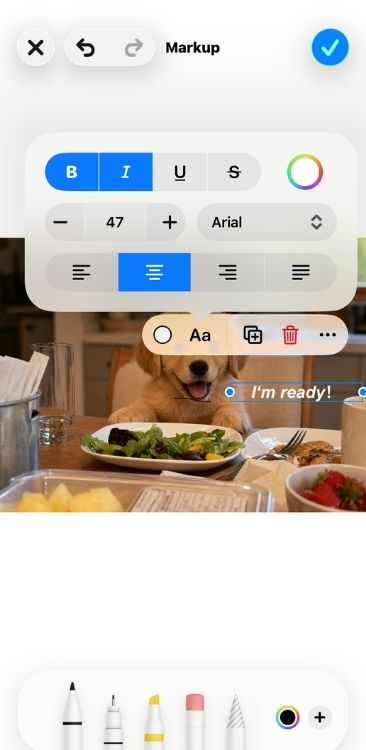
- Write the text
- Select the font and colors of the text
- Place the text in a position where it is clearly visible
Step 5: Save the Image
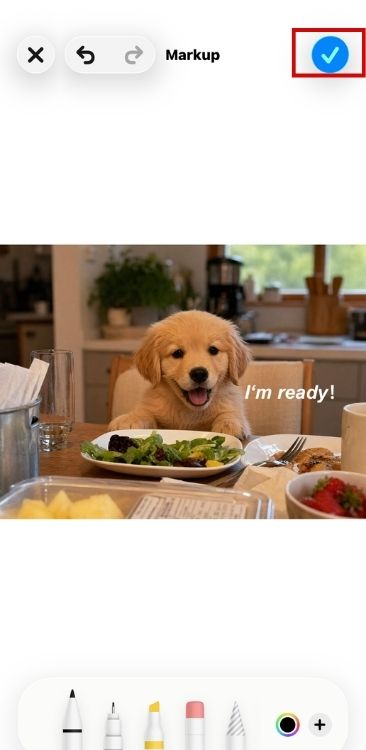
Once you have the image you imagined, click on the “done” button to save the changes you have made. Also, you can edit other aspects of the image before saving it, if you want.
Step 6: Share it on Social Media
Lastly, you did not create a meme to keep it to yourself, right? Thus,
- Upload the picture on your social media
- Send it to your group chats or friends
How to Make a Meme on iPhone with BeautyPlus?
Although you do not need to use any app to make a meme on your iPhone, the editing options are limited. Therefore, you can use the BeautyPlus camera app and tool to make a professional-level meme by following these steps. Also, note that these steps can also help you learn how to make a meme on Android.
Step 1: Upload the Image
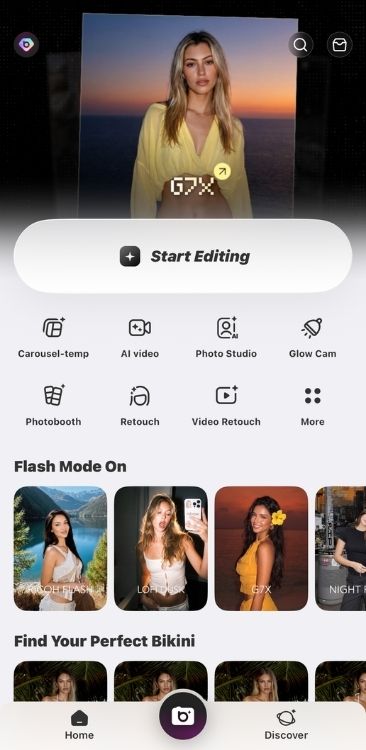
To create a meme using BeautyPlus, you have to upload an image first. For this,
- Click on the “Start Editing” option and select the image of your choice
Step 2: Add Text or Stickers
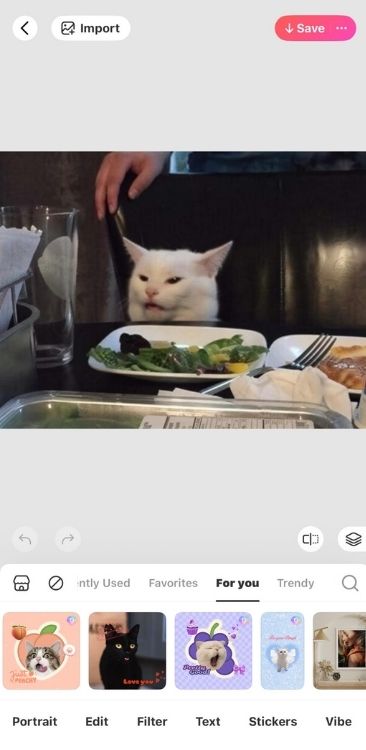
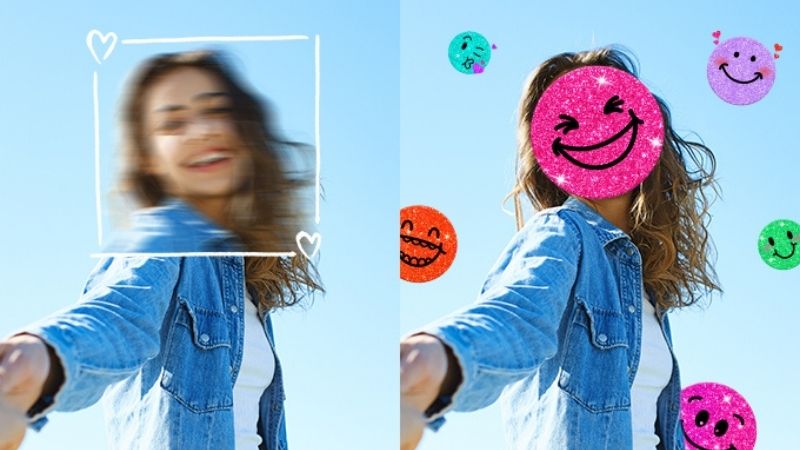
You can use BeautyPlus’s text tool to create a meme, or you can choose to add stickers instead.
For this,
- Click on the “Text” page in the main menu
- Add Text
Step 3: Choose a fun text format
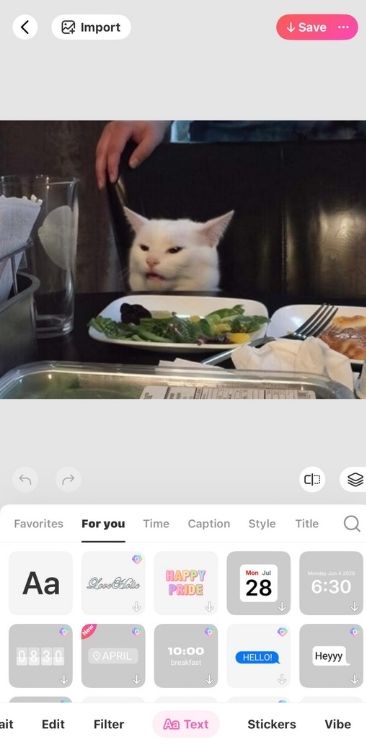
Select a text effect that you think complements your image.
Step 4: Adjust Text Format of the Picture
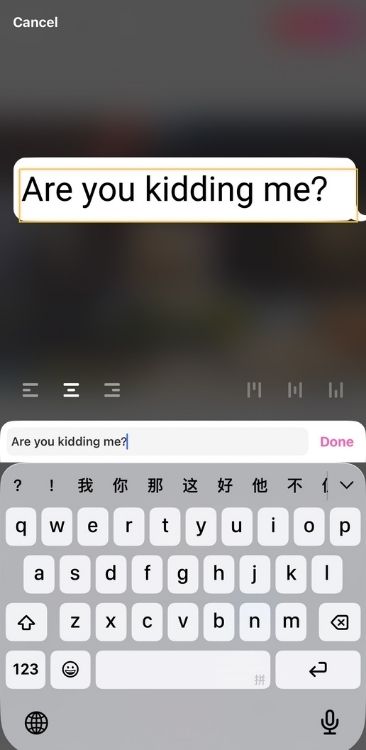
See if your image is aesthetically pleasing and funny to watch. If yes, perfect. If not,
- Add color of the text
- Adjust format and position
Step 5: Save the image
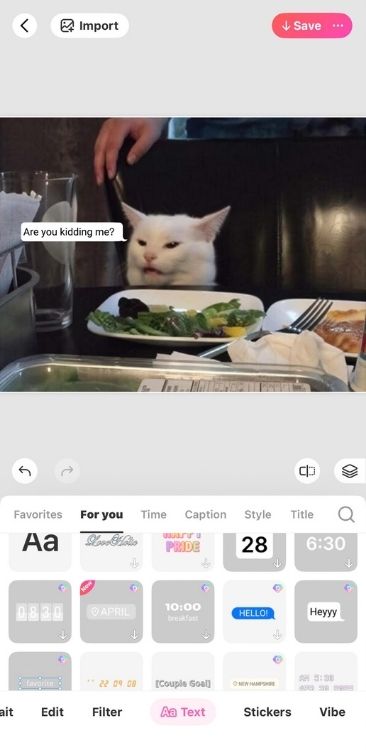
Finally, click on the “import/save” option and save the picture.
Part 3: Other Apps to Make a Meme on iPhone
In addition to an all-rounder application like BeautyPlus, there are several other apps that can be exclusively or mainly used to make iPhone memes. Below are the top 2 apps for this.
1. Mematic: The Meme Maker App

Having a basic free version and a pro for $2.99, Mematic is an exclusive meme maker for iPhone, iPad, and other iOS devices. This application is specifically made for iOS version 12.0 or above and offers,
- Multiple texts, fonts, backgrounds, and other editing options
- Pre-made meme templates
- Stickers, emojis, and filters
Furthermore, it uploads the image directly from the server to social media accounts. So, you can use it on your iPhone to create fun content online.
2. Picsart AI: Photo and Video Editor

Picsart AI photo and video editor is a multi-purpose tool. In addition to features like removing background, editing pictures, greeting paintings, making collages, and more, the Picsart AI editor has a free meme generator.
Picsart meme generator also has both free and premium paid versions to help you create memes that make people laugh effortlessly. It has,
- Several themes and color combinations
- Features animated memes
- Allows you to create a meme from scratch
Moreover, you can print these memes in addition to sending them to your friends.
FAQs
A: If you want to share your meme, just click the “Share” button directly in the BeautyPlus application to post it to Facebook or Instagram; or you can also save the picture to your mobile phone album, and then upload it manually by clicking the “+” icon on the corresponding platform.
A: To make memes popular, the text should be short and powerful to ensure that people can read it in a few seconds; use bold words to improve eye-catchingness; at the same time, the content should focus on current hot spots or daily life troubles that are easy to cause resonance, so as to stimulate strong emotions and encourage users to share or mark friends.
A: BeautyPlus is one of the best applications for making memes, because it not only has simple and easy-to-use text tools that allow you to customize fonts to create eye-catching matching texts, but also is equipped with a large number of sticker libraries, which can instantly add interest to any photo.
Conclusion
Making memes on an iPhone without an app is a piece of cake when you know how to make the best of the built-in iPhone editor. From uploading the picture to adding the text, the iPhone has features to help you create memes.
However, there are some limitations to the iPhone meme editor. Therefore, you require an application, just like BeautyPlus to take your creativity in making memes to an advanced level.