
What Would I Look Like With Veneers?

The trend where every celebrity suddenly has straight, white teeth is not a coincidence. It is not something that a simple bonding or braces procedure can usually achieve. The rise of veneers is something many people are now interested in, because the look of pearly white, perfectly straight teeth is what most people want to get close to.
And that is understandable. However, veneers can be expensive, and not everyone has a positive experience. In some cases, natural, slightly crooked teeth actually suit a person’s facial harmony better.
Fortunately, you now have tools that many of them did not have. You can preview what would I look like with veneers and decide more confidently whether this option is right for you.
 Download on App Store
 Get It on Google Play
How to Know What Would I Look Like With Veneers Using App?
BeautyPlus is a photo editing application that goes beyond regular editing tools. Its built-in AI features remove the need to rely on chatbots or spend time searching for prompts, since most edits can be done directly inside the app.
When it comes to online veneers filter, the app does not have a feature specifically labeled for them. Instead, it offers teeth whitening and a teeth correction or a perfect teeth filter that can create a similar visual result. You can choose the Natural option for a softer, more realistic look, or the Enhanced option to refine the existing shape of your teeth and make them appear straighter and brighter.
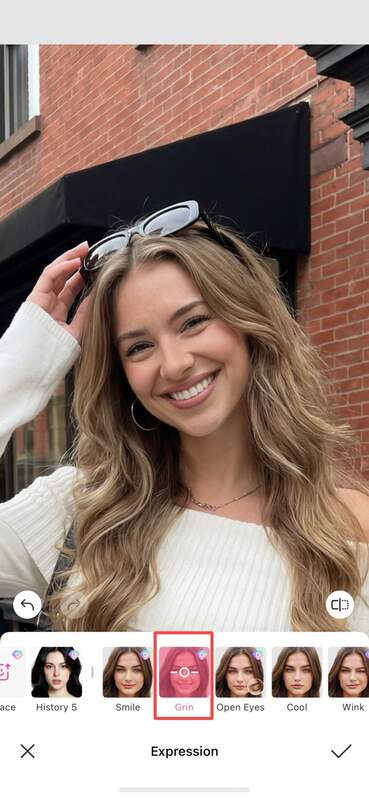
You can also use the auto teeth generator through the Grin feature, which automatically adjusts your smile to create a fuller, more even set of teeth in just a few taps. This gives you another quick way to preview a veneer-like smile before making any real-world decisions.
Teeth Correction and Whitening
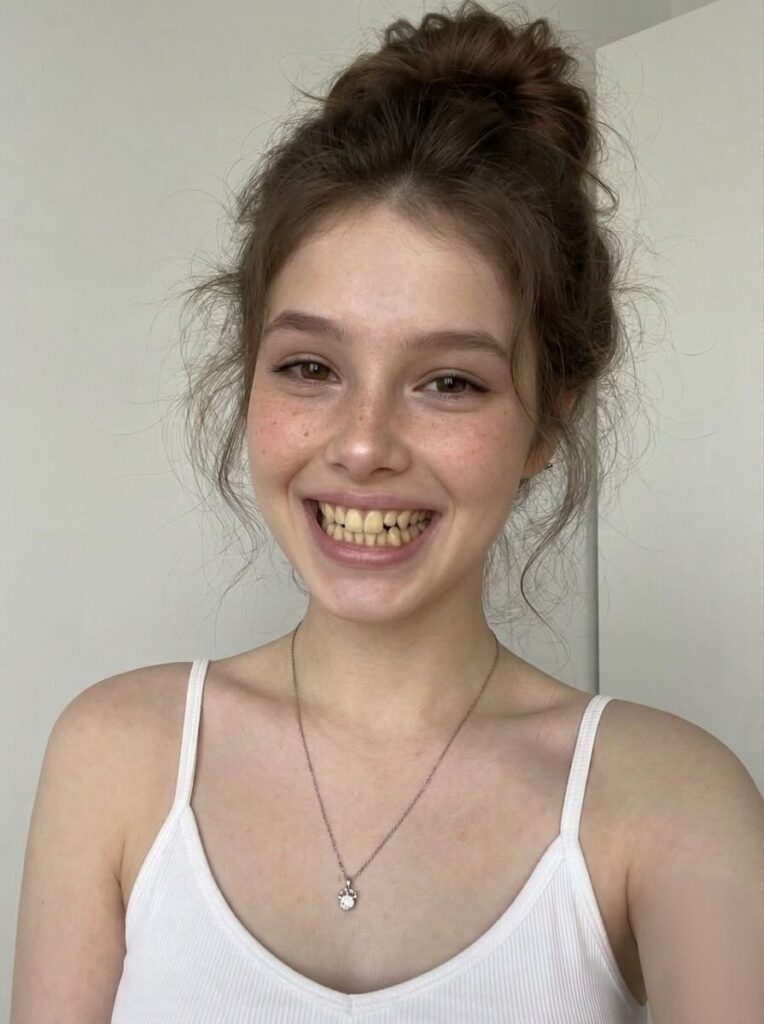
The teeth correction and whitening features in BeautyPlus are placed side by side for easy access. The teeth whitening tool brightens your teeth while keeping a natural appearance, so the results do not look artificial or out of place.
The teeth correction feature focuses on alignment. It generates natural perfect teeth and gives you two options to choose from, allowing you to adjust the result based on how subtle or refined you want the final look to be.
Step-by-Step Guide
1. Open BeautyPlus and tap “Start Editing”.
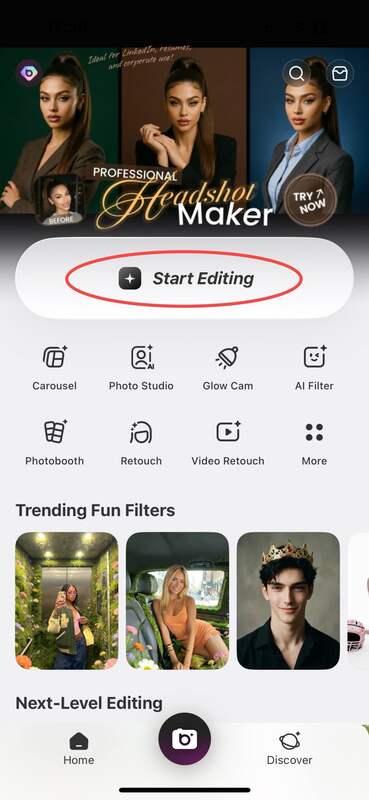
2. Select the photo you want to edit from your gallery.
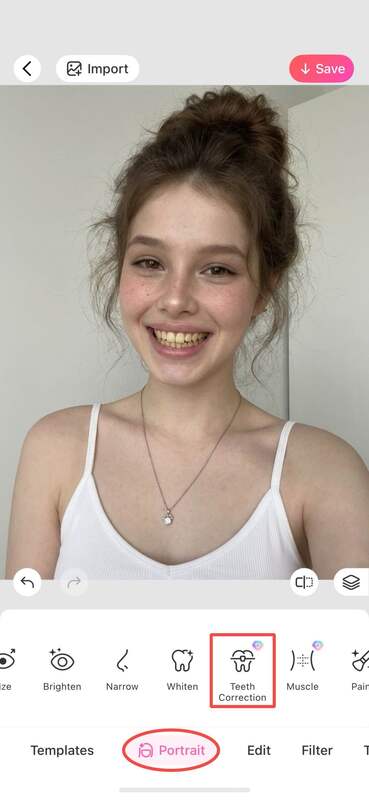
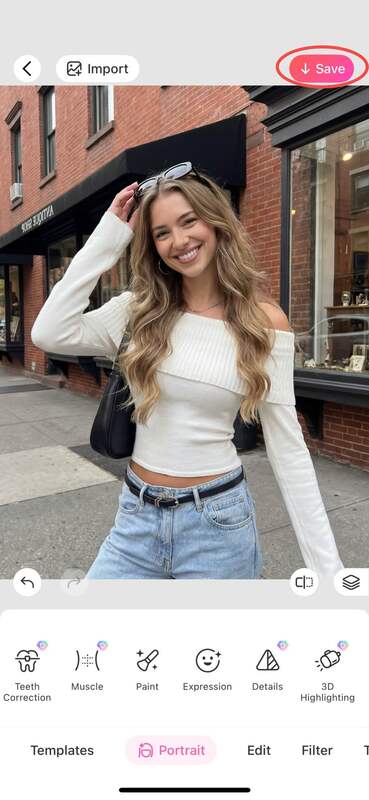
3. Go to the “Portrait” section and choose “Teeth Correction”.
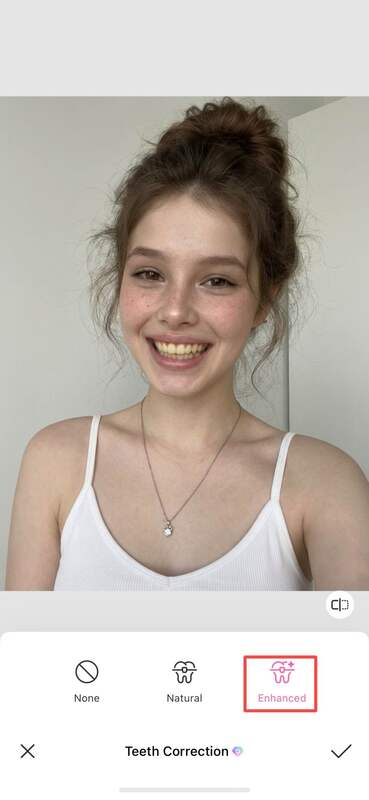
4. Pick either Natural or Enhanced, and select between the two pictures of perfect teeth that BeautyPlus generates for either option.
5. To whiten the teeth in the image, head over to the “Whiten” feature and choose auto to automatically whiten teeth, or choose manual to manually select the area and adjust how white you want the teeth to be.
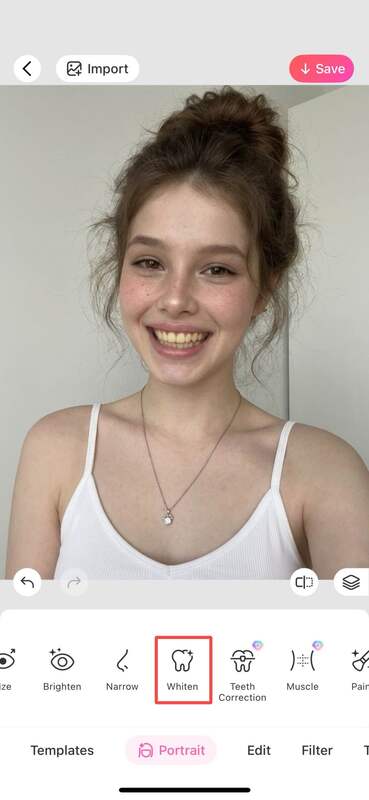
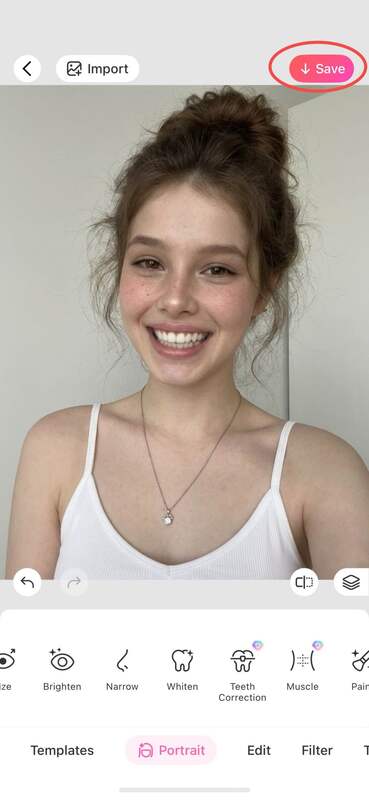
6. Save the edited image by tapping the “Save” button at the top right.

Auto Expression Changing
There is also an automated way to see how would I look with veneers. You can go to the Expressions section and select the Grin option, which adds a subtle, realistic smile to your face. It adjusts the teeth and expression automatically to create a more balanced, pleasant look.
Step-by-Step Guide
1. Open the BeautyPlus app and tap “Start Editing” and select the photo you want to edit.
2. Go to the “Portrait” section and choose “Expression”.
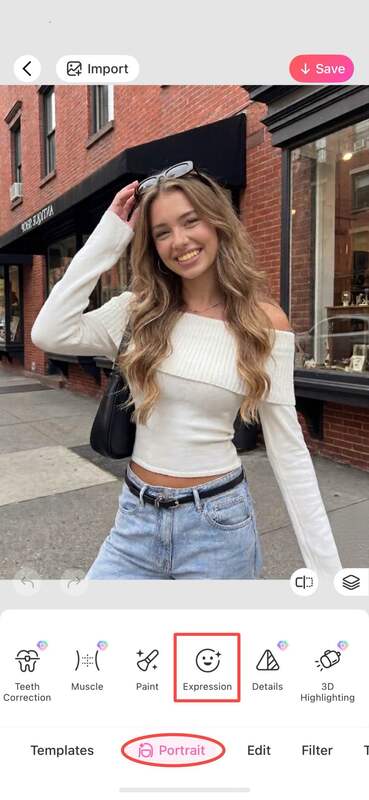
3. Select “Grin” to apply the effect.
4. Save the edited image by tapping the Save button at the top right.


How to Know What Would I Look Like With Veneers Online?
You can also choose an online option if you prefer editing outside the app. There are web tools specifically designed for a free online virtual teeth makeover that can show you how you might look with veneers. Another option is to use a chatbot-based image editor, where you upload your photo and enter a prompt to preview a veneer-style smile.
BeautyPlus Online
The BeautyPlus online tool saves you from having to download an application just to perform specific edits. It is quick and easy to use, and you also get a limited number of free trials to test the features before deciding whether you want to continue.
Step-by-Step Guide
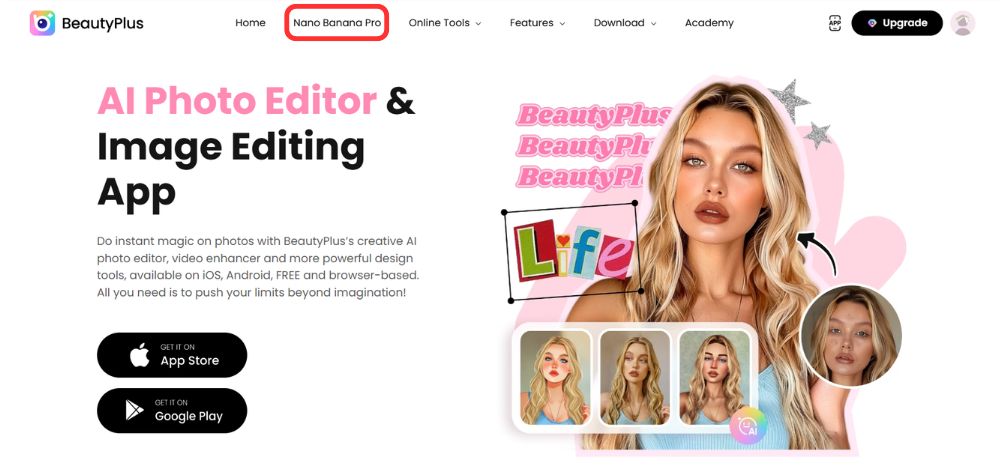
1. Open the BeautyPlus online tool on your browser and select the “Nano Banana Pro” option at the top.
2. Choose the “Image to Image” option.
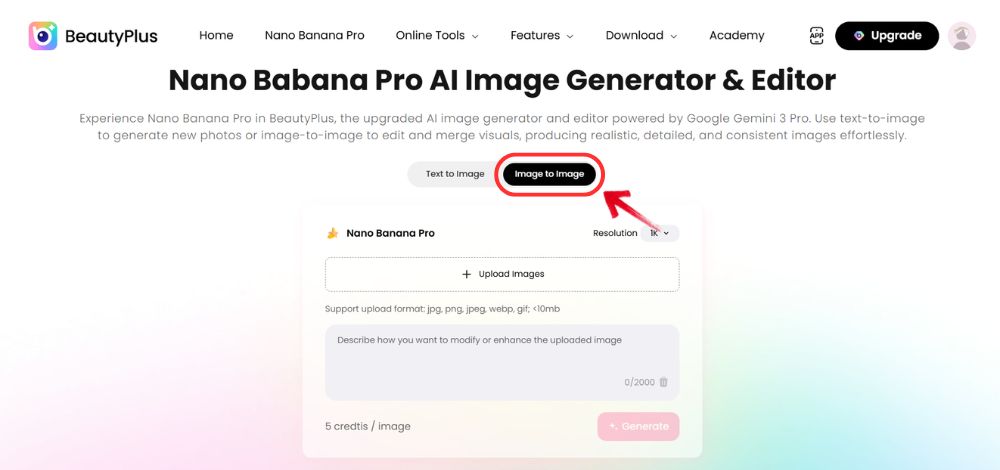
3. Upload your photo to the tool by clicking on “Upload Image” button.
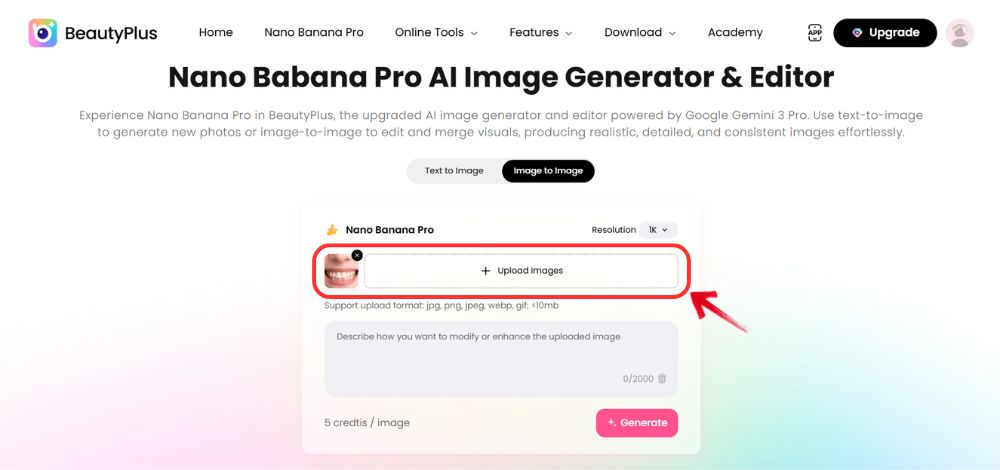
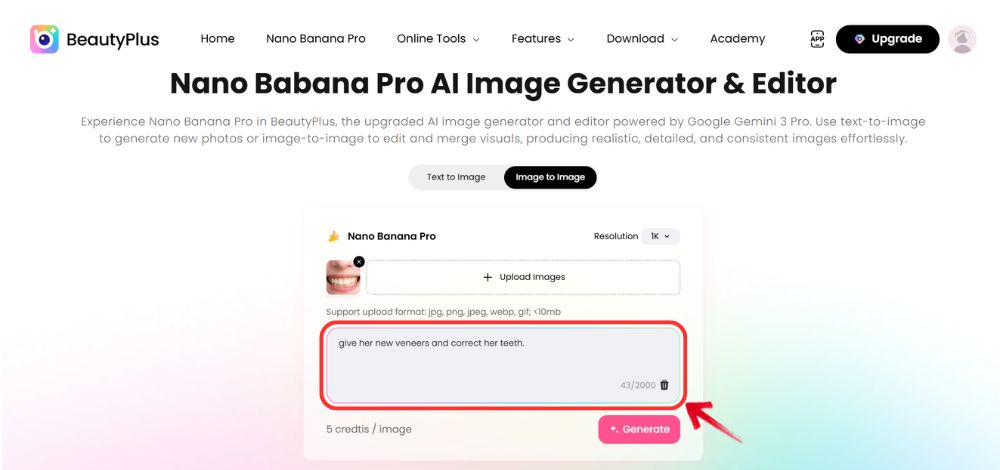
4. Enter a prompt describing the veneer style or look you want.
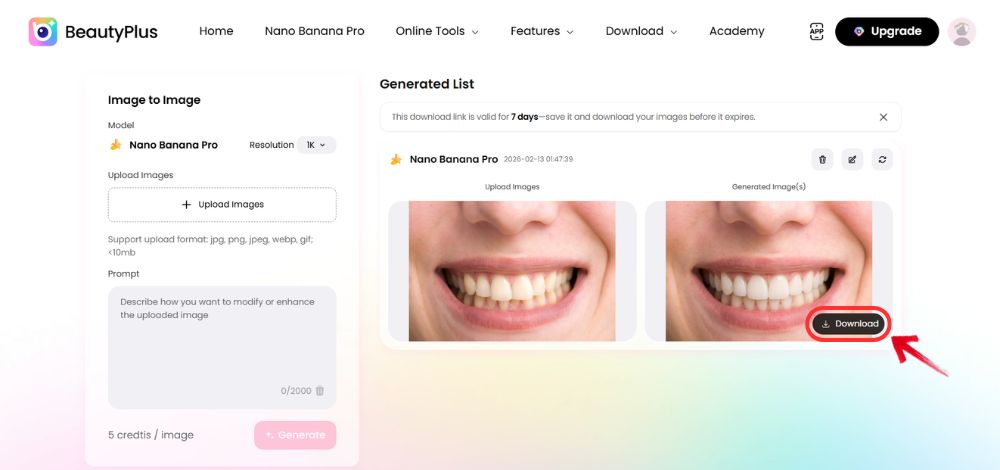
5. Download the result and save the edited image to your device.
Gemini
Gemini is often considered one of the most advanced chatbots, and for good reason. It can generate images as well as text, which makes it useful for visual edits too. You can use it to create a preview of how you might look with veneers by uploading a photo and giving a simple prompt describing the smile you want.
Step-by-Step Guide
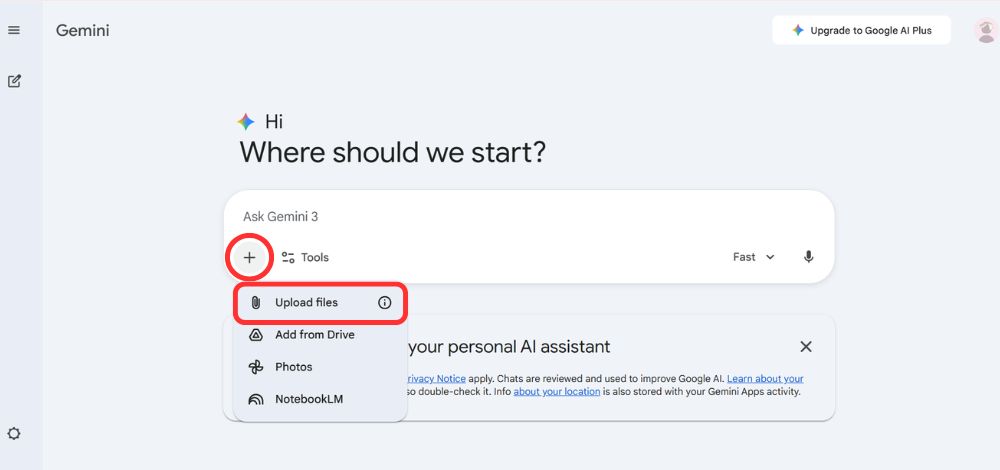
1. Head over to Gemini and upload your image to the tool by tapping on the plus icon.
2. Enter a prompt describing the veneer style you want to try.
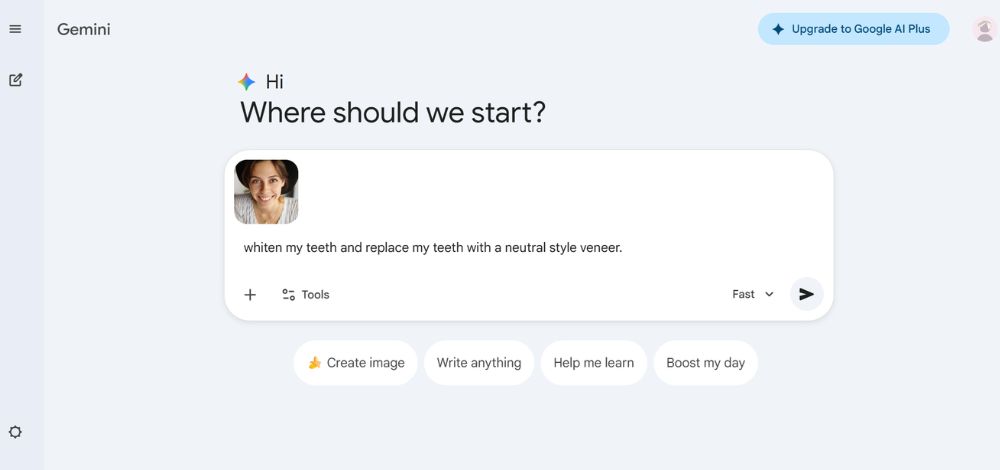
3. Download the generated result once it is ready.
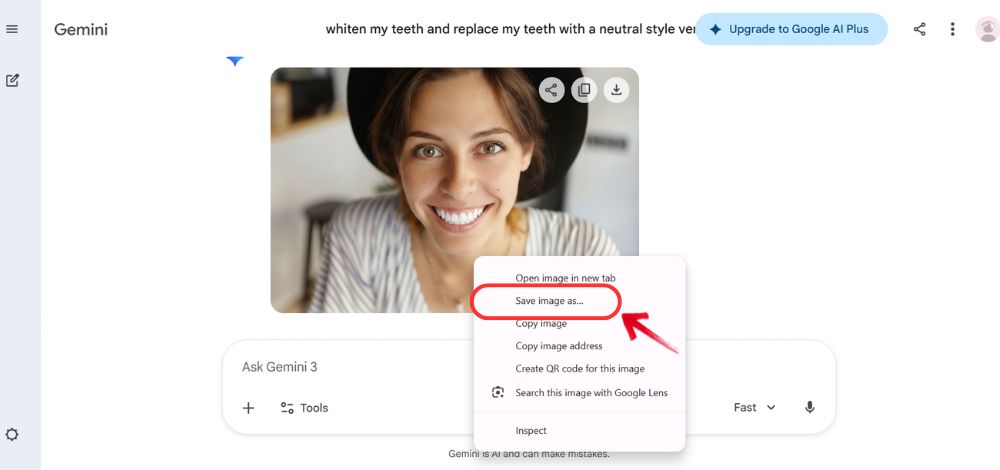
4. Save the edited image to your device.

Bottom Line
Veneers are, in many cases, used to create the appearance of straighter, more even teeth. However, it is important not to follow the trend just because it is popular, especially since the procedure can be expensive. Veneers can help improve the bite and overall smile design, but slightly crooked teeth can also have their own charm and character. In some cases, that natural look may suit your face better than a perfectly uniform smile.
Tools like BeautyPlus can give you a near-accurate preview of how you might look with veneers, helping you make a more informed decision before considering any permanent treatment.
FAQs
Can I use an app to see what I would look like with veneers?
Yes, you can use photo editing apps to preview a veneer-style smile. Apps like BeautyPlus offer teeth whitening, straightening, and smile adjustment tools that can simulate the look of veneers.
How can I see how I would look with veneers online without downloading apps?
You can use browser-based editing tools that work directly online. Many websites offer teeth straightening or smile enhancement features where you simply upload a photo and apply the effect. Another option is using AI image chatbots. You upload your picture, enter a short prompt describing a veneer-style smile, and the tool generates a preview without requiring any downloads.
How will my teeth look with veneers?
Veneers are designed to create a smoother, brighter, and more symmetrical smile and make teeth appear straighter, evenly shaped, and whiter, while still matching your natural facial features. The exact result depends on factors like tooth shape, size, and your dentist’s design approach, which is why preview tools can be helpful before making a final decision.