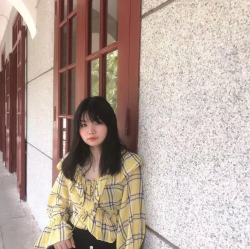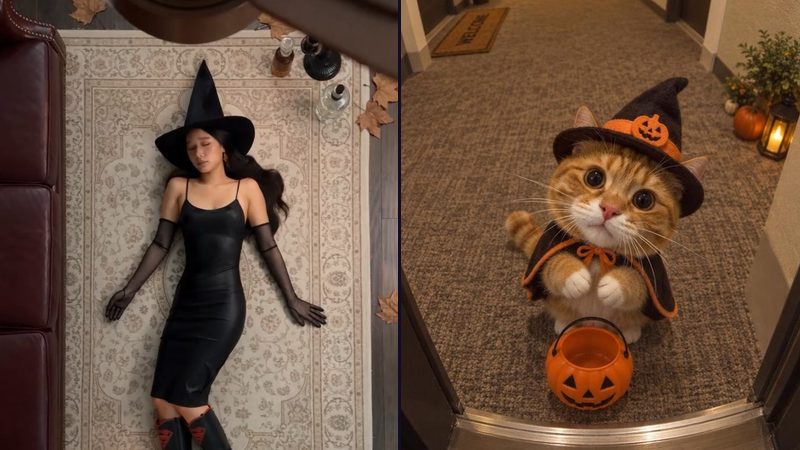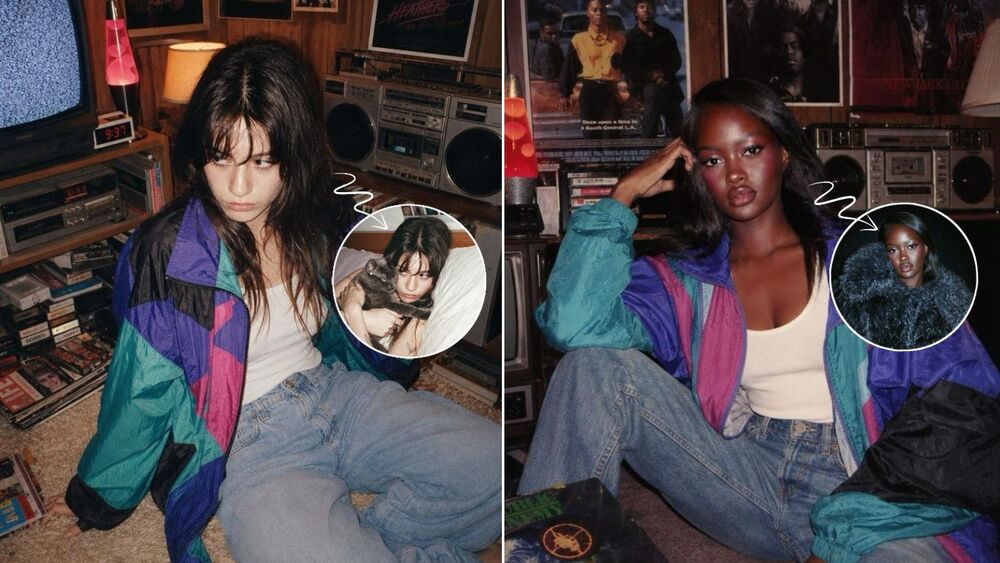

How to Make the Viral X-Ray Effect: 2 Easy Ways

The X-Ray effect has been popping up in Instagram and TikTok edits, turning ordinary photos into short AI videos with a glowing skeleton reveal. It is simple, dramatic, and easy to recognize at a glance.
If you want to try the trend yourself, there are two straightforward ways to do it: use the ready-made X-Ray effect in BeautyPlus, or create your own version with an AI prompt. In this article, we’ll explain how to recreate this trending effect in detail.
 Download on App Store
 Get It on Google Play
What Is the Viral X-Ray Trend?
The X-Ray trend turns a normal photo into a stylized scan-like visual, usually revealing a glowing skeleton while keeping the person’s original pose and composition recognizable.
The appeal is mostly in the contrast. One moment you see an everyday photo, and the next it switches into an X-Ray-style view. That quick reveal works especially well for Instagram Reels, TikTok edits, and other short-form videos. Depending on the photo, the result can look cool, funny, futuristic, or even cute.
How to Create the Viral X-Ray Trend with BeautyPlus
The easiest way to try the trend is to use the ready-made X-Ray effect in BeautyPlus AI Video. You do not need to search for a prompt or spend time testing different versions first.


Step 1: Find the X-Ray Effect
Open BeautyPlus, tap More on the Home screen, then go to Others > AI Video > X-Ray.
Step 2: Upload and Generate
Add your photo and generate the X-Ray video.
Because the effect is already built in, you can go straight from your photo to the finished video without having to figure out the prompt first.
How to Create the X-Ray Effect with an AI Prompt
If you want more control over the look, you can also make the effect with an AI image-to-video tool.
Upload a clear photo, then describe the transformation you want. You can start with a prompt like this:
“Transform the person in the uploaded photo into a stylized glowing X-ray skeleton while preserving the original pose, outfit silhouette, camera angle, and composition. Reveal the skeleton naturally inside the body with a bright blue and cyan radiographic glow. Create a smooth transition from the normal appearance to the X-ray view. Keep the face, body proportions, and background consistent throughout the video.”
You may need to adjust the wording a little before you get the exact look you want.
Finding the Right Prompt Can Take Some Time
For viral AI effects like this, the prompt often makes a noticeable difference. On social media, prompts may be shared in posts, comments, or DMs, and some creators ask viewers to interact with a post before sending the prompt.
So if you are trying to recreate a specific look, you may need to spend a little time finding the right prompt and testing it with your own photo.
3 X-Ray Trend Ideas to Try
1. Full-Body X-Ray Look
A full-body shot makes the skeleton transformation much easier to see. Try it with a standing pose, a travel photo, or a shot of yourself pulling a suitcase for a fun contrast between an everyday moment and the X-Ray reveal.
Keep your whole body visible in the frame and avoid covering your arms or legs too much.
2. OOTD Street Style
An everyday OOTD photo can look completely different once the X-Ray effect kicks in. Street backgrounds, layered outfits, sneakers, jackets, and accessories all add more detail to the transition.
Choose a photo where your silhouette stands out clearly from the background.
3. Elevator Mirror Selfie
An elevator mirror selfie already has that effortless social-media look, which makes the sudden X-Ray switch feel even more unexpected.
Try standing close to the center of the frame and make sure your phone does not cover too much of your body.
FAQ
It is an AI editing trend that turns a normal photo or video into a stylized X-ray-like view, often revealing a glowing skeleton while keeping the subject’s original pose.
One way is to use a ready-made AI video effect, as in BeautyPlus. Another is to upload a photo to an AI image-to-video tool and describe the X-Ray transformation with a prompt.
Yes. AI image-to-video tools can animate a single photo and turn it into an X-Ray-style video.
Yes. If you do not want to search for or test prompts, you can use a ready-made effect instead. BeautyPlus includes an X-Ray effect in AI Video, so you can upload a photo and generate the video directly.
Clear photos with a visible subject usually work best. Full-body shots, simple backgrounds, and centered poses can make the transformation easier to see.