

How to Fix Pixelated Video: Problems and Solutions

Back in the day, lower resolution and visible pixelation were common, and once a video was recorded that way, it usually stayed that way. It might seem like pixelation is a lost cause, something that cannot really be fixed.
But that is not entirely true anymore. With the right tools, pixelated videos can often be improved. So if you have old footage that looks rough or a recent recording that came out blurry because of the wrong camera settings, today might actually be the day you find how to fix pixelated video and to bring that video back to life.
W Download on App Store
 Get It on Google Play
Why Are My Videos Pixelated?
Before jumping straight into the fix, it helps to first understand what might be causing the problem. Pixelated videos can result from several different factors, and identifying the root cause makes it much easier to apply the right solution.
In some cases, the issue might come from playback settings, while in others it may originate from the video’s original recording quality or compression. By narrowing down what is actually causing the pixelation, you not only improve your chances of fixing the current video but also prevent the same problem from happening again in future recordings.
Playback Issues
Causes
Sometimes the issue is not the video itself but how it is being played. Other times the problem comes directly from the source quality of the recording. Before trying to fix anything, it helps to understand where the pixelation is actually coming from.
First, check for playback issues.
Common causes include:
- GPU driver issues
- Hardware decoding errors
- Codec conflicts
- Windows video rendering pipeline issues
How can we determine which factor is the cause?
Here is how you can determine which factor might be responsible.
- Check Device Manager. If you see a yellow exclamation mark on your Display Adapter, the graphics driver is likely faulty or outdated.
- Disable Hardware Acceleration in the video player’s settings. If the pixelation disappears after turning it off, the hardware decoder was likely causing the problem.
- Try opening the same video in a Windows native player. If the video works properly there but fails in another player, you are probably dealing with a codec priority conflict.
- Run dxdiag from the Windows Run dialog and check whether Direct3D Acceleration is enabled. If it is disabled, the Windows rendering pipeline may be broken or misconfigured.
Source Quality Issues
In many cases, the problem is simply that the video was recorded or exported with limited quality.
Common causes include:
- High compression
- Low native resolution
- Physical shooting limitations
How can we determine if this factor is the cause respectively?
You can consider running the following troubleshooting techniques that will eventually help you unblur video.
- Open the video properties and check the bitrate. If it is very low, for example under 2 Mbps for a 1080p video, the footage has likely been heavily compressed.
- Resize the video window to around 25% of its original size. If the image suddenly looks sharper, the video’s native resolution is low and it is being upscaled.
- Pause the video and examine the edges, shadows, or darker areas. If you notice digital noise, blocky compression artifacts, or out-of-focus blur, the issue likely comes from physical shooting limitations such as poor lighting, focus problems, or camera hardware limits.
Once you understand the exact cause, fixing pixelated video becomes much easier because you know whether the problem lies in the system playback settings or the original video quality itself.
How to Fix Pixelated Video Caused by the Playback Issue?
If you have already checked that the video itself is fine and the problem only appears during playback, the issue is most likely related to your system’s video drivers, decoding settings, or rendering pipeline. Fortunately, these problems are usually fixable once you identify the cause.
GPU Driver Issues
A faulty or outdated graphics driver can cause strange playback behavior such as pixelation, flickering, or distorted frames. The safest way to fix this is to perform a clean installation of your graphics driver. Instead of simply updating it, remove the existing driver completely and reinstall the latest version from the official manufacturer website.
Hardware Decoding Errors
Modern media players often use hardware acceleration to decode video through the GPU. While this improves performance, it can sometimes cause pixelation or visual artifacts. Try disabling hardware acceleration in the player or browser settings so the CPU handles decoding instead. If the issue disappears, the GPU’s hardware decoder was likely causing the problem.
Codec Conflicts
Pixelation can also occur when multiple codec packs are installed and compete to decode the same video format. This can lead to unstable playback or visual distortion. Removing unnecessary codec packs and using a player with built-in codecs, such as VLC, usually resolves the issue.
Windows Video Rendering Pipeline Issues
Sometimes the problem is not decoding but how the video is rendered on screen. Windows uses different rendering pipelines such as EVR or Direct3D depending on the media player. If the current renderer does not work well with your system, it can cause pixelation or visual artifacts. In this case, open the player’s video settings and switch the renderer to another option, such as changing from EVR to Direct3D 11 or another available module.
Once these playback-related factors are corrected, many pixelation issues disappear without needing to modify the video itself.
How to Fix Pixelated Video Caused by Source Quality Issue?
No matter the cause of your pixelation, using a pixel remover backed by AI can go a long way. Increasing pixels using a video enhancer tool can make the video more defined.
How to Make a Video Clearer Online?
BeautyPlus has built a reputation for delivering results that often exceed expectations. As enhancement tools became more advanced, BeautyPlus equipped its platform with powerful image enhancers capable of restoring older photos and making them appear as if they were captured much more recently.
The same approach extends to its AI video enhancer. BeautyPlus includes an AI video repair designed to improve the quality of low-resolution or dated footage. By increasing pixel detail and refining visual clarity, the tool helps make colors appear brighter and the overall video smoother, giving older or pixelated clips a noticeably refreshed look.
Step-by-Step Guide
1. Head over to your browser and open the Video Enhancer tool on the website.
2. Click on Upload Video and select the video file from your device that you want to enhance.
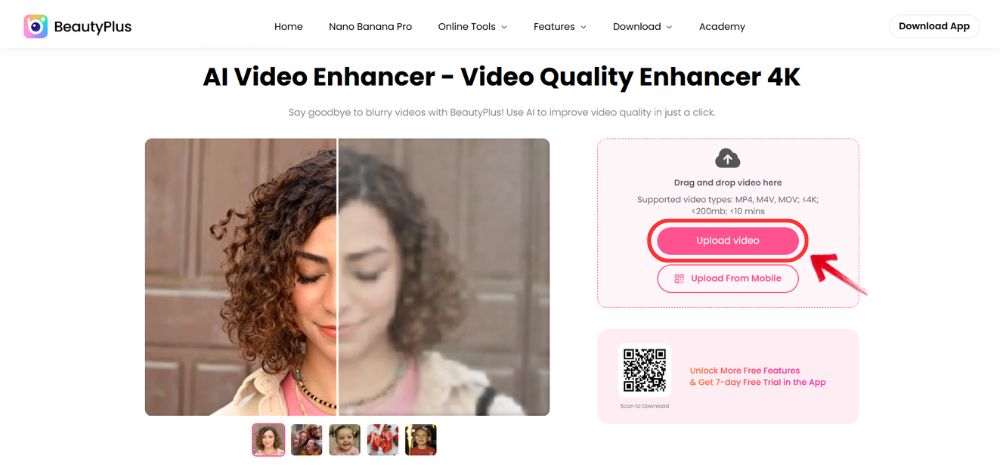
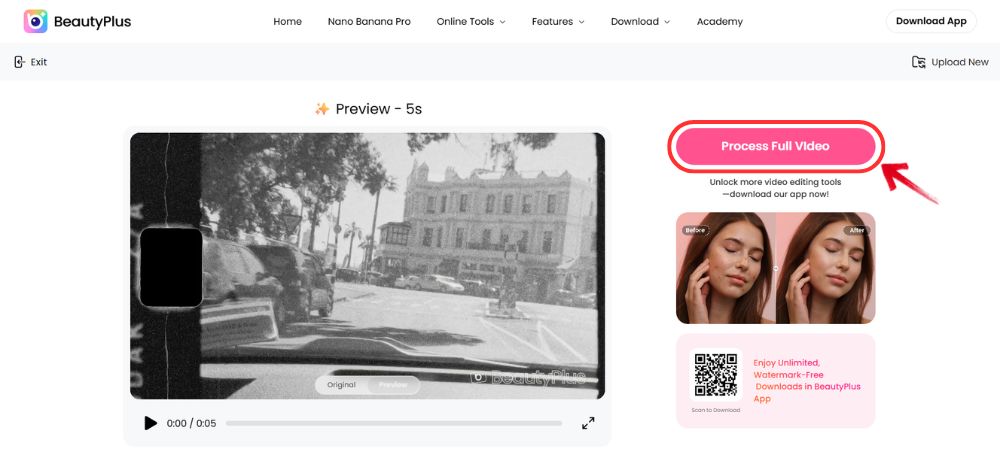
3. Once the video uploads, you can view a 5-second preview to check how the enhanced version will look. This helps you decide whether the result meets your expectations.
4. If the preview looks good, click Process Full Video to enhance the entire video. You can also skip the preview and process the full video directly.
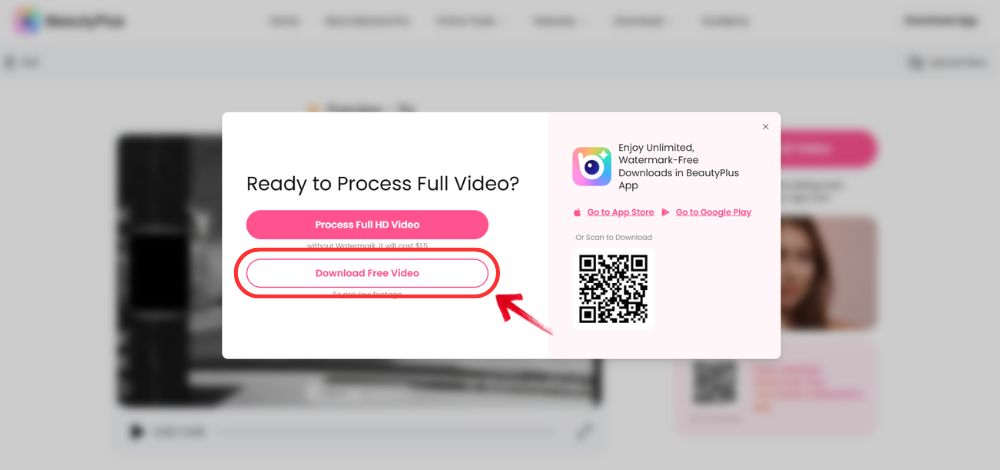
5. After processing is complete, click Download to save the enhanced and clearer version of your video to your device.
Bottom Line
If you are a content creator and are essentially building your career around making videos, or even if you simply enjoy making videos for fun, having a good phone with a strong camera can go a long way. However, what can make things even better is having BeautyPlus’s video enhancer by your side. It helps ensure that your videos always come out looking crisp, sharp, and premium, even if the original footage is not perfect.
YouTube videos often appear pixelated right after uploading because the platform processes different quality versions in stages. Initially, only lower resolutions may be available. Once higher resolutions finish processing, the video becomes clearer. A slow internet connection or selecting a low playback quality can also make the video appear pixelated.
Check your camera settings and make sure you are recording in a higher resolution such as 1080p or 4K. If the video is already recorded, you can use BeautyPlus online video enhancer tool to improve clarity and reduce pixelation. Also, make sure your playback quality and internet connection are not limiting the video resolution.
Facebook compresses videos during upload to reduce file size. If the original video has a low resolution or bitrate, compression can make it appear pixelated. Uploading videos in higher resolution and enabling the platform’s HD upload option usually helps maintain better quality.