
Santa Filter: How to Add Santa to Photo for Free?
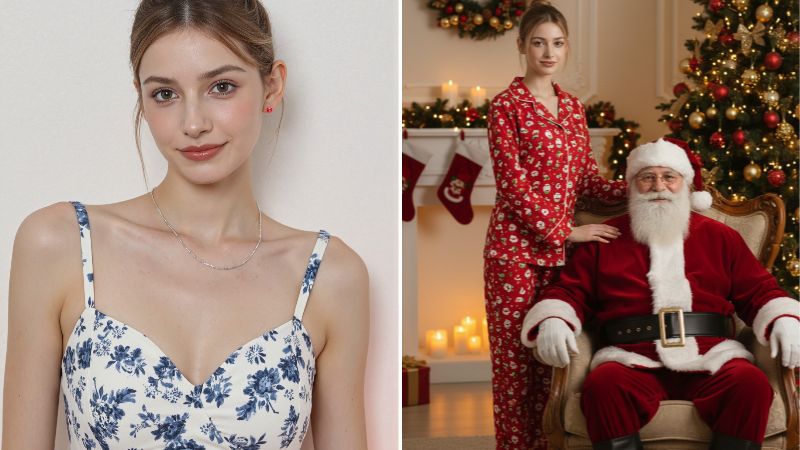
During the holiday season, you’ve probably seen people lining up at malls or theme parks to snap pictures with Santa, checking off that classic Christmas ritual. But if you’re anything like me, posing in public can feel awkward, and you’re never quite sure what to do with your hands.
That’s where AI comes in. Now you can add Santa to your photo with just one click. You get to pick the scene, the pose, and how you interact with him, making the whole thing way more fun, playful, and creative than any traditional photo op.
 Download on App Store
 Get It on Google Play
How to Add Santa to a Photo Online?
For every AI transformation, there are plenty of tools available, and one that is always keeping up with trends well before they become popular is BeautyPlus. It has recently integrated Nana banana AI into its filter capabilities, so instead of using chatbots and writing complex prompts to generate an AI Christmas photo, BeautyPlus lets you simply upload your photo and does the rest for you.
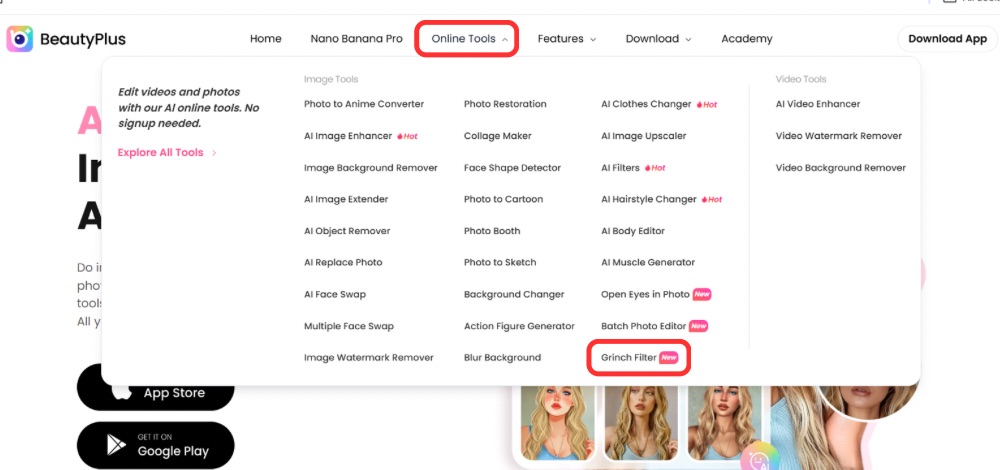
1. Open your browser and visit the BeautyPlus Grinch filter tools.
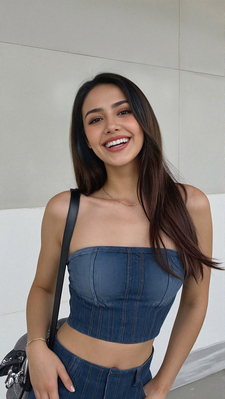
2. Make sure to click on the Santa filter called the “Santa Moment”, then upload your portrait by clicking the + icon in the upload image box.
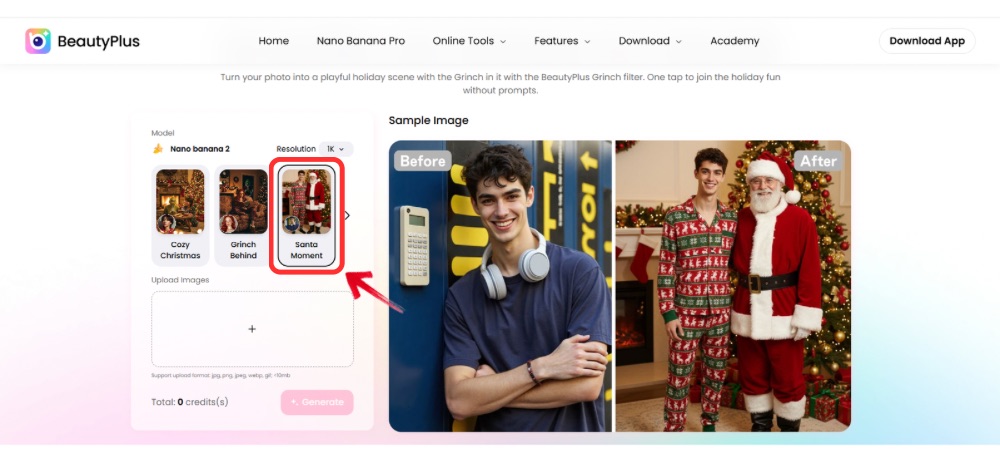
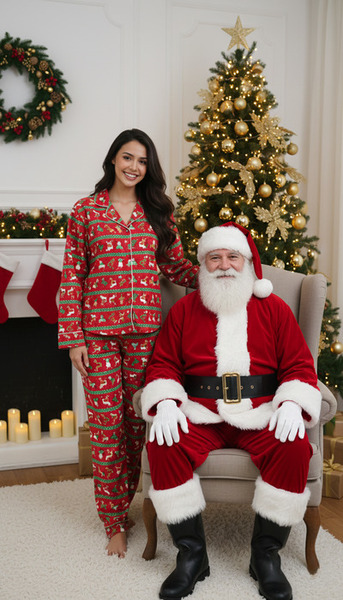
3. Next, click “Generate” and wait a couple of seconds as BeautyPlus creates an image of you with Santa.
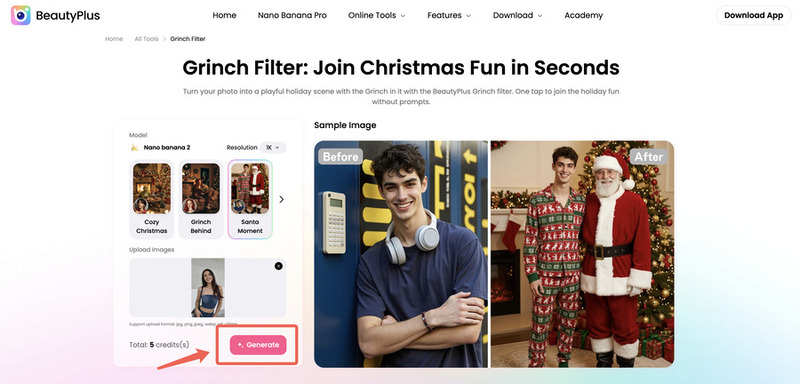
4. Download the image so you can share it with friends and family, and no one needs to know it was AI-generated.
How to Add Santa to a Photo on Your Phone?
Now, if you want to shake things up a bit, enter the Grinch. If you’re anything like me, the idea of posing with a mischievous green creature sounds way more fun than standing stiffly next to Santa. Now you can use the BeautyPlus app and get the best results from it.
1. Download the BeautyPlus app and get started by opening it and tapping the “Start Editing” button.
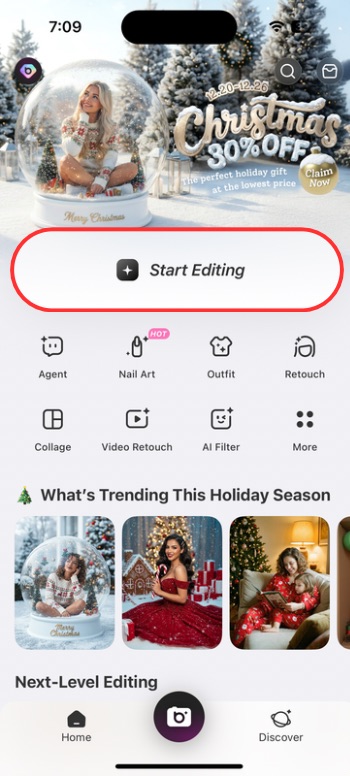
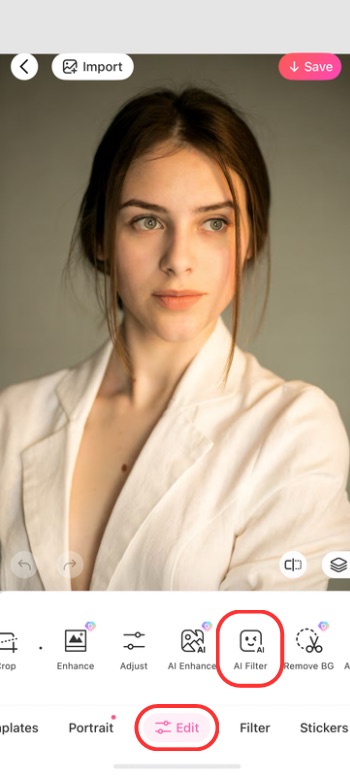
2. Once you have uploaded your image after being prompted, tap on “Edit” in the Edit tab and scroll through your edit options until you find “AI Filter”, then tap it.
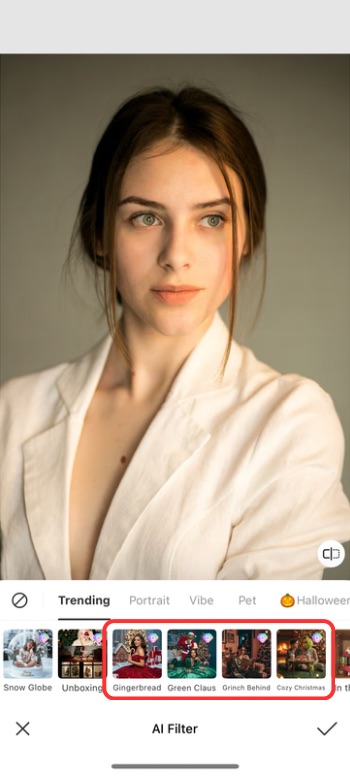
3. Next, scroll through the AI Santa filters until you find Green Claus, Grinch Behind, or Cozy Christmas. They are all equally Christmas-vibey, so choose the one that serves your purpose best.
6. The AI will do its thing and apply the filter to your image, which you can then save and download to your device.
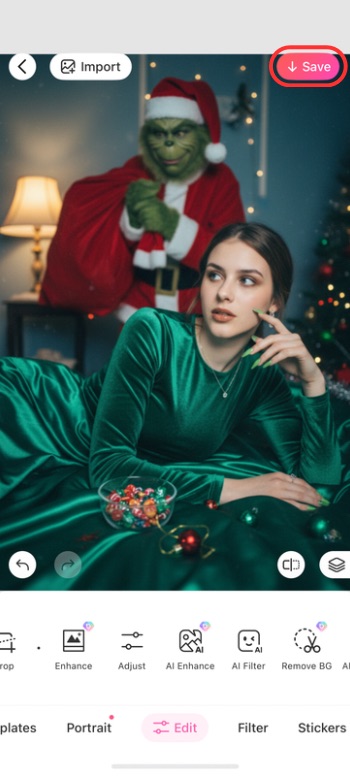
The app offers more than just the Grinch — there are plenty of other options for creating AI Christmas images too, such as Snow Globe, In the Box, and more.
How to Add Santa to a Photo with Google Gemini?
If using prompts to generate edited images is something that has grown on you, Gemini never fails. The Nano banana engine is truly a remarkable AI model that generates realistic images effortlessly, of virtually anything you can imagine.
1. Install the Gemini app on your device and launch it.
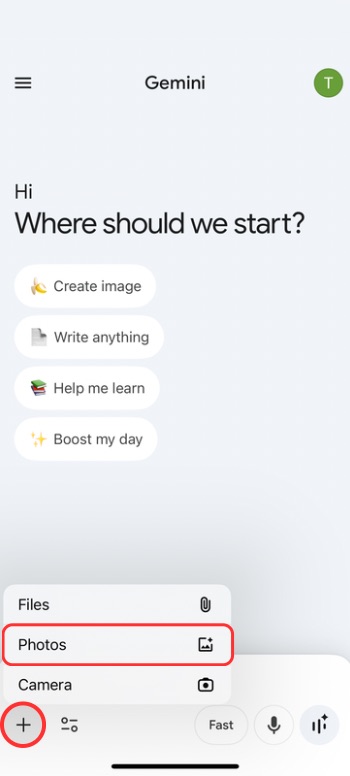
2. Tap on the “+” icon to upload your image by clicking on “Photos”.
3. Next, add a descriptive prompt to generate an image of you next to Santa. Something like this:
Santa Filter Prompt:
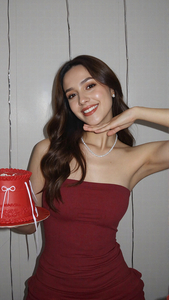
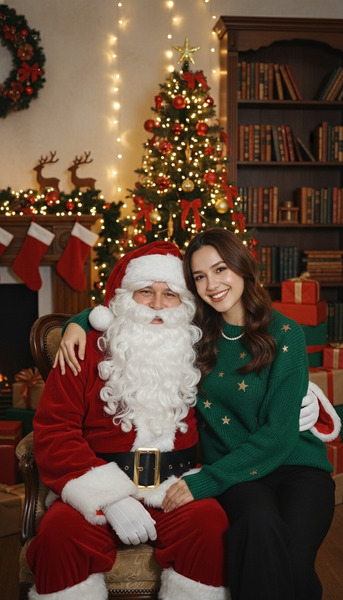
“Christmas-themed filter portrait, a beautiful British girl took a photo with the kind Santa Claus. Santa Claus has a white beard, red Christmas clothes, and a hat, with a warm smile, gently hugging the girl. The girl is wearing a festive dress or sweater and pants, with a happy and relaxed expression, looking at the camera with a smile. The scene is a warm indoor studio with decorated Christmas trees, lights, wreaths, and gift boxes in the background. There are wooden bookshelves or fireplace decorations on the wall. The overall setting is retro and fairy tale-like. Warm, soft yellow light shines on the characters’ faces, the skin looks delicate and natural, the tone is warm, with a slight film feel, high-definition style, full of Christmas atmosphere, and no text.”
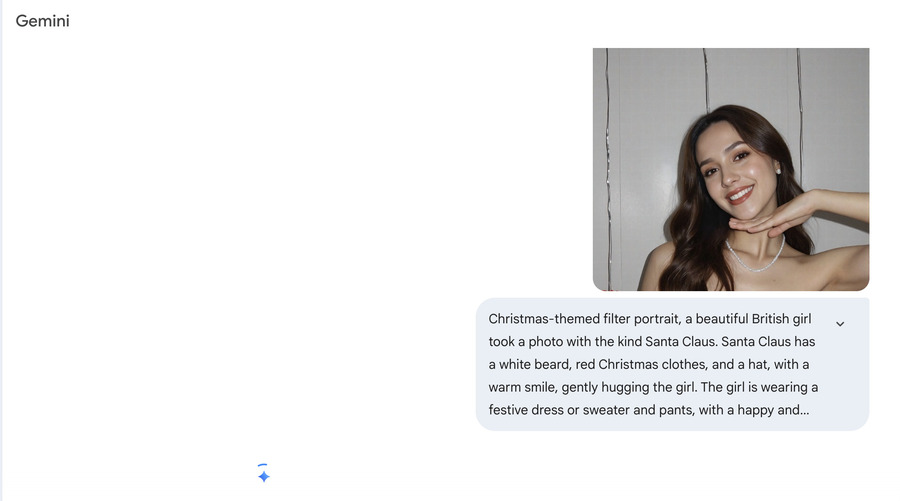
4. Your image with Santa will be generated, which you can then download and share with friends and family.
How to Add a Santa Hat to a Photo?
You can’t really call Christmas a holiday without a few key elements, like a Christmas tree and the presence of Santa. While there are many simple ways to bring that festive feeling to life, not everyone has a Santa hat or decorations at home. If that’s the case, it’s not a problem. BeautyPlus makes it easy to add those Christmas details to your photos in a simple and hassle-free way.
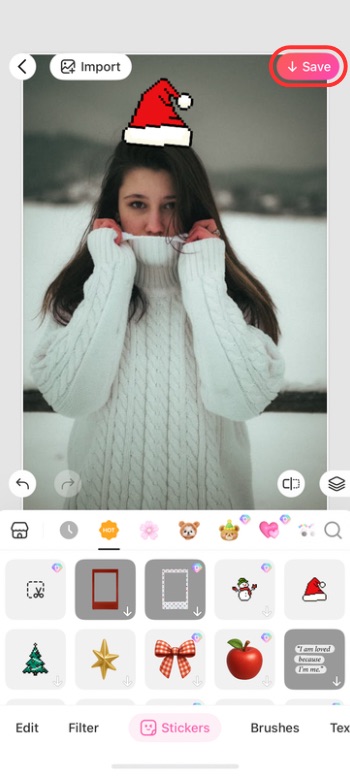
1. Open BeautyPlus on your device and tap the “Start Editing” button to upload your image from your device.
2. Tap on “Stickers”.
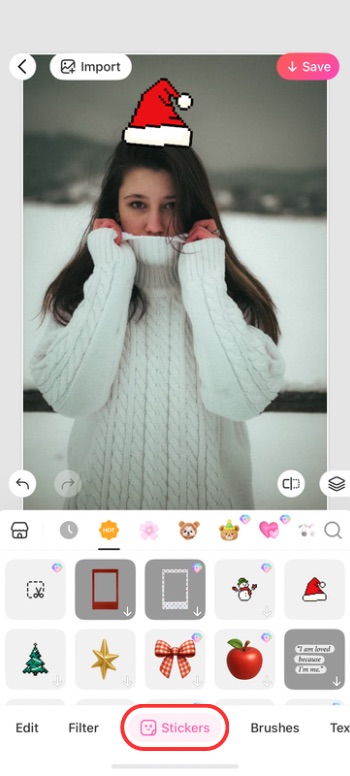
3. Find a Santa hat sticker and tap it to apply.
4. Now just save the image to your device by tapping “save” to share the image with your loved ones, who you want to spend the holiday with.
Conclusion
Santa may be a fictional character created to represent the spirit of Christmas, but the joy, warmth, and nostalgia associated with him are very real. Now it could be either for fun, memories, or just sharing a festive moment with loved ones, adding a touch of Santa to your photos can make the season feel a little more special. With simple AI tools now available, creating those moments no longer requires effort or technical skills.